Bug Tracker
Section: Test Execution · Pages: /bug-tracker (Dashboard), /bug-tracker/activity (Activity), /bug-tracker/workload (Workload)
Purpose#
The Bug Tracker is a simple place to log QA issues per feature and team. It shows how many issues each feature has and what share of them are valid. A valid issue is a real defect, as opposed to a duplicate, a misunderstanding or "works as designed". It has three views: the Dashboard (features and their numbers), Activity (a feed of every change) and Workload (open and closed issues per person).
The problem it solves#
Before: issues found during a test cycle are scattered across chat messages and spreadsheets. Nobody knows how many are open per feature, how many were later rejected as invalid, or who is overloaded.
After: every issue sits under its feature page with a severity, status and assignee. The dashboard's % Valid pill shows report quality at a glance, Activity shows what changed and when, and Workload helps balance the team.
Who should use it and when#
- QA engineers — during a test cycle, to log issues as they find them and update their status.
- QA leads — daily, to watch open P0/P1 issues, the valid rate per feature and the team's workload.
- Developers — to see the issues assigned to them and mark them Resolved.
- Managers — before a release, to see defect counts per feature (they also feed Release Readiness).
Key features#
- Teams (+ New Team) that group feature pages (New Feature Page). Use the team list on the left to filter, or All to see everything.
- A dashboard table with Feature, Total issues, Valid issues and % Valid per feature page.
- Feature pages with an issue table: ID, Title, Severity, Status, Valid, Reporter, Assignee, Created and Actions.
- New Issue dialog: Title, Description, Severity (P0–P3), Status (Open, In Progress, Resolved, Closed), Reporter, Assignee and a Valid issue switch.
- Inline status changes and a valid switch right in the table.
- Search issues... across all features, from any Bug Tracker page.
- Activity — a newest-first feed of issue changes, such as "changed status from Open to Resolved".
- Workload — per-assignee counts of open, open P0/P1 and closed valid issues, with an open-vs-closed bar.
How to use it#
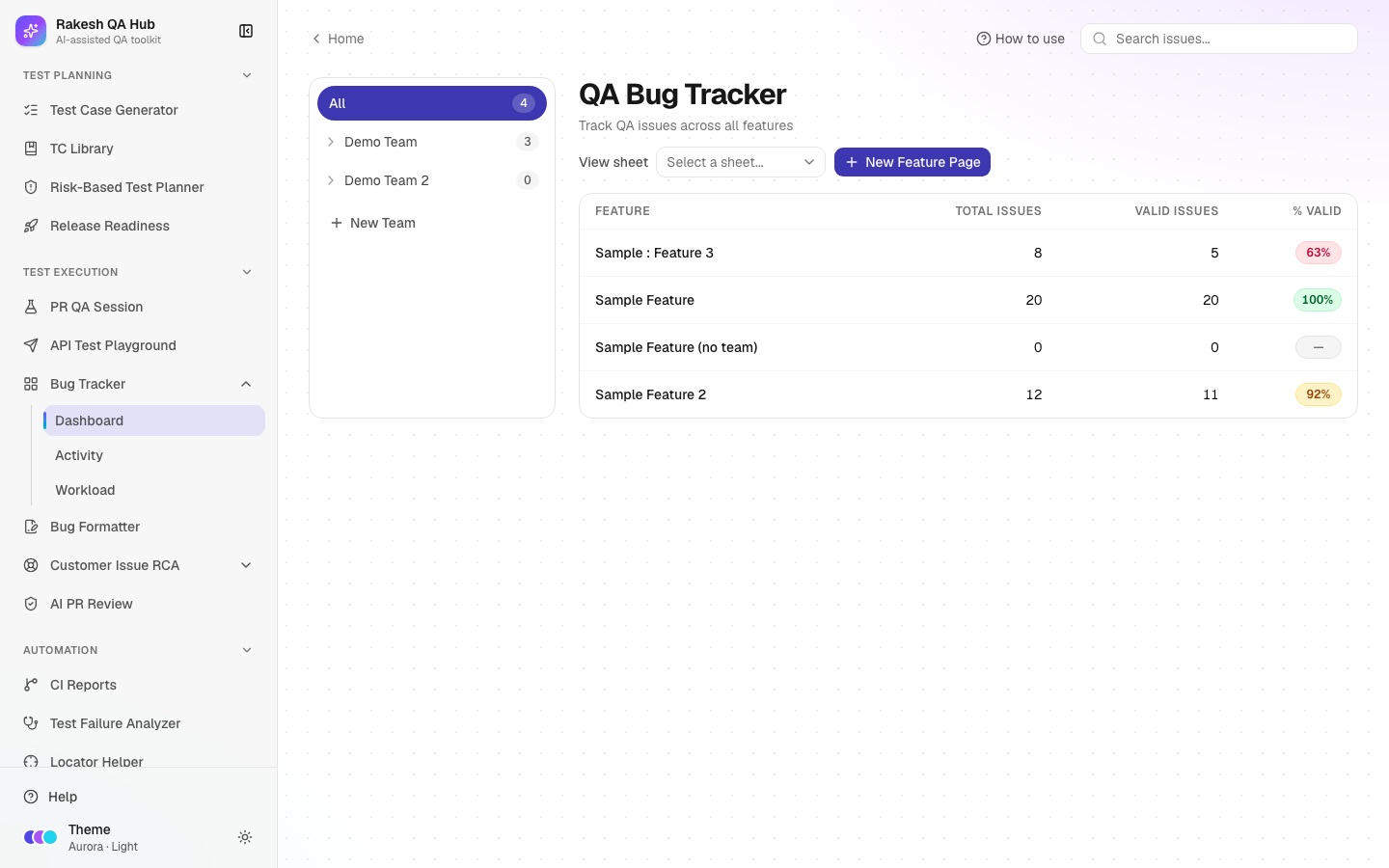
- Open Bug Tracker from the Test Execution section of the sidebar. The Dashboard opens.
- Click + New Team and enter a Team name (e.g. "Payments").
- Click New Feature Page, enter a Feature Name (e.g. "Checkout") and choose the Team.
- Click the feature in the table to open its page, then click New Issue (or Add the first issue).
- Fill Title and Description, pick a Severity and Status, and set the Assignee. Reporter is pre-filled with your Your name value (set in modules such as TC Library or Release Readiness; it's shared across the hub in this browser). Leave Valid issue on unless the issue was rejected.
- Save. The issue appears in the table, and the dashboard counts update.
- As work progresses, change Status inline (e.g. Open → In Progress → Resolved). Turn Valid off if an issue turns out not to be a defect.
- Open Activity in the sidebar (under Bug Tracker) to see every change across features.
- Open Workload to see how many valid issues each assignee has open and closed.
Worked example#
Team "Payments" has a feature page "Checkout". During a test cycle you log four issues:
| Title | Severity | Status | Valid |
|---|---|---|---|
| Coupon code is case-sensitive | P1 | Open | ✓ |
| Total not updated after removing an item | P0 | In Progress | ✓ |
| Button colour differs from design | P3 | Closed | ✗ (works as designed) |
| Error toast overlaps the header on mobile | P2 | Resolved | ✓ |
The dashboard shows Checkout: Total issues 4, Valid issues 3, % Valid 75% with a red pill. Workload shows "Demo Assignee A: Open 2, Open P0/P1 2, Closed 1". Activity lists "changed status from Open to Resolved on Error toast overlaps the header on mobile".
Understanding the output#
-
% Valid pill — valid issues ÷ total issues:
- Green — 95% or more.
- Amber — 85–94%.
- Red / pink — below 85%.
- Grey "—" — no issues yet.
A low rate can mean unclear requirements or reports that need more detail.
-
Severity:
- P0 — critical: a blocker, data loss or security.
- P1 — high: a major feature broken.
- P2 — medium.
- P3 — low or cosmetic.
-
Status — Open (new), In Progress (being fixed), Resolved (fixed, waiting for QA to confirm) and Closed (done).
-
ID — the last 6 characters of the issue's internal ID, unique enough to quote in conversations.
-
Workload counts — only valid issues count. Open = Open + In Progress, and Closed = Resolved + Closed. Open P0/P1 highlights urgent work, and Unassigned collects issues with no assignee.
-
Activity entries — who changed what (the actor is the Your name value), from which value to which, and when.
Tips and best practices#
- Agree on what P0–P3 mean in your team and stick to it; release gates count P0 and P1 issues.
- Mark rejected issues invalid instead of deleting them. The % Valid rate is a useful signal about report quality.
- Set Your name once (it's on the TC Library, AI PR Review, Release Readiness and Failure Analyzer pages and shared across the hub) so the reporter and activity show who did what.
- Use one feature page per user-facing feature (e.g. "Checkout", "Login") rather than per sprint, so history builds up.
- Check Workload before assigning new bugs.
Limitations and things to know#
- This is a lightweight tracker, not a replacement for Jira or similar tools. There are no attachments, comments, or custom fields.
- View sheet (Google Sheets sync) is shown as "Coming soon".
- Deleting an issue or a feature page needs the admin passcode, and deleting a feature page also deletes its issues.
- Team and feature names must be unique (ignoring upper/lower case).
- Everything is visible to everyone using the hub. Don't log client data or personal details in issue text.
Works well with#
- Bug Formatter — format findings cleanly, then log the important ones here.
- Release Readiness — linked feature pages feed the "No open P0 bugs", "No open P1 bugs" and "Valid-bug rate" gates.
- Risk-Based Test Planner — import feature pages as plan areas and get defect-history suggestions.
- Test Failure Analyzer — failures that look like product bugs can go through the Bug Formatter and end up here.
FAQ#
What's the difference between Resolved and Closed? Resolved means a developer says it's fixed. Closed means QA has confirmed it, or it was decided not to fix it.
Why doesn't an issue appear in Workload? Workload counts valid issues only. Check that Valid issue is on and an assignee is set; issues without an assignee are under "Unassigned".
Can I move an issue to another feature? Not directly. Create it on the right feature page and delete the old one (passcode needed).
How do I find an issue quickly? Use Search issues... at the top of any Bug Tracker page. Clicking a result opens its feature page with the issue highlighted.