Test Failure Analyzer
Section: Automation · Page: /failure-analyzer
Purpose#
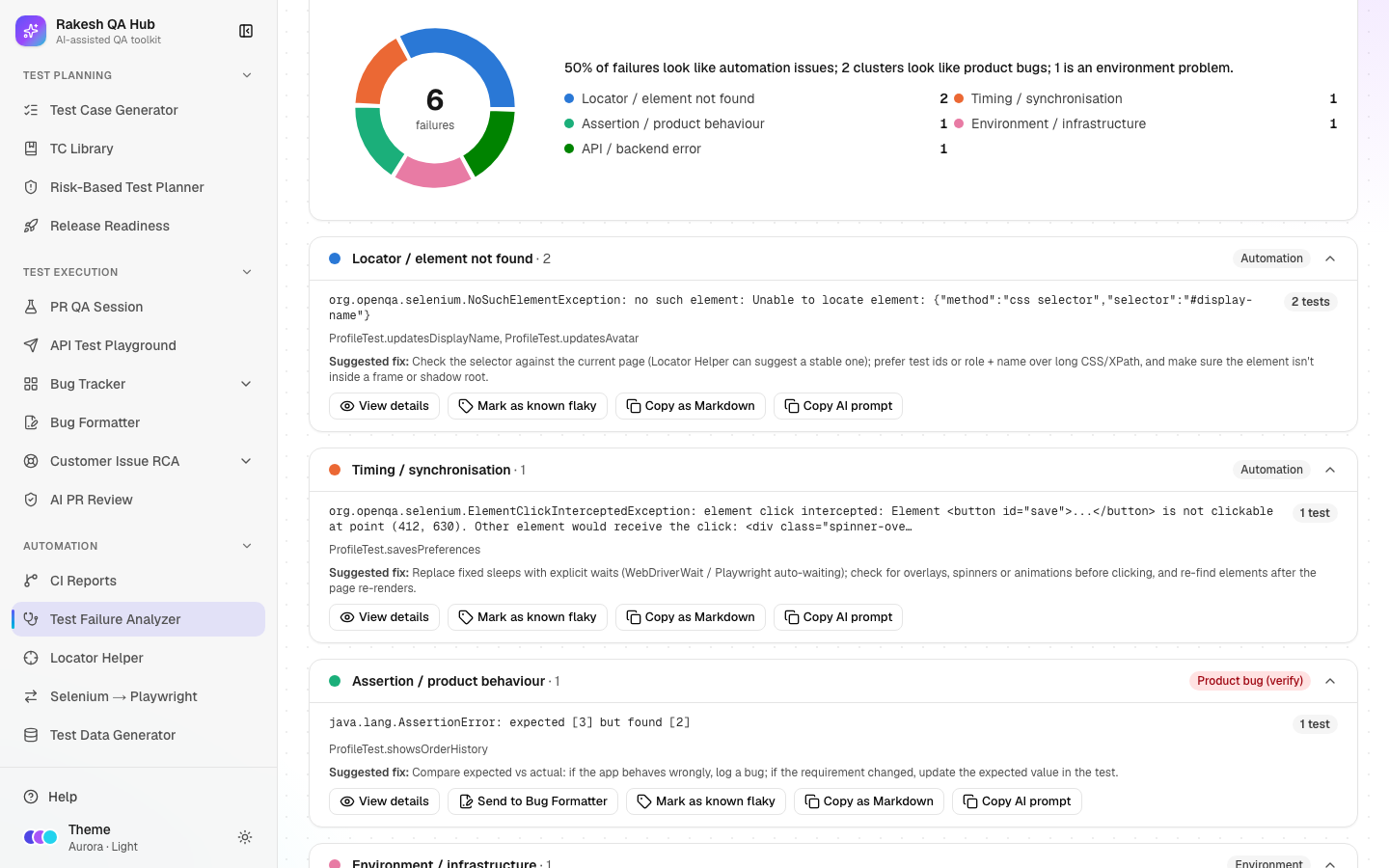
The Test Failure Analyzer reads failed automated tests and groups them by likely root cause. You paste logs, upload TestNG, JUnit or Playwright reports, or pull a failed run from CI Reports. You get clusters of failures that share the same cause, each labelled with a category and a suggested fix. The analyzer also separates script issues (problems in the test code or setup) from likely product bugs (the app itself behaving wrongly).
The problem it solves#
Before: a nightly run fails 60 tests and someone reads 60 stack traces one by one. Most turn out to be the same broken locator or a slow environment. Real product bugs hide among them, and nobody remembers which failures are known flaky tests.
After: 60 failures become, for example, five clusters. A summary line says how many look like automation problems and how many look like product bugs. Known flaky tests are badged and can be hidden, product-bug clusters go to the Bug Formatter in one click, and saved analyses show trends over time.
Who should use it and when#
- Automation engineers — every morning after the nightly run, or whenever a CI run fails.
- QA engineers — to decide quickly whether a failure needs a bug report or a test fix.
- QA leads — to watch trends: are locator failures going down, and is the environment stable?
Key features#
- Three inputs:
- Paste logs — stack traces, TestNG/Maven console output or Playwright list output. Load sample shows an example.
- Upload report —
testng-results.xml, JUnit/SurefireTEST-*.xml, Playwrightresults.json, or.txt/.logfiles. - From CI — pick a CI suite and a Failed run from CI Reports.
- Analyze groups failures into clusters with the same signature (normalised message plus the top application stack frame).
- Seven categories:
- Locator / element not found
- Timing / synchronisation
- Assertion / product behaviour
- Test data / setup
- Environment / infrastructure
- API / backend error
- Unknown
- Per cluster:
- an owner badge (Automation, Product bug (verify) or Environment) and a Suggested fix
- View details — the full message and stack trace
- Send to Bug Formatter — for product-bug categories
- Mark as known flaky
- Copy as Markdown
- Explain with AI — when AI is on; otherwise Copy AI prompt
- Hide known issues, Save analysis, Saved analyses, a Known issues list and a Failures per category over time chart.
How to use it#
- Open Test Failure Analyzer from the Automation section of the sidebar.
- Choose an input:
- Paste logs — paste stack traces or console output, or click Load sample to try it.
- Upload report — drop report files on the box or click Choose files.
- From CI — pick a CI suite and a Failed run.
- Click Analyze.
- Read the summary line and the category chart, then go through the clusters, largest first.
- For each cluster:
- Read the owner badge, the affected tests and the Suggested fix.
- Open View details for the stack trace.
- If it's a real product problem, click Send to Bug Formatter.
- If it's a known flaky test, click Mark as known flaky, give it a Label and optional Notes, then Save.
- Optional: click Explain with AI (or Copy AI prompt) for a second opinion on a tricky cluster.
- Click Save analysis and give it a Name (defaults to the date and time) to track trends.
- Check Saved analyses and the trend chart after a few runs.
Worked example#
You paste the console output of a failed Checkout suite with 12 failures and click Analyze:
58% of failures look like automation issues; 1 cluster looks like a product bug; 2 are environment problems.
| Cluster | Category | Count | Suggested fix |
|---|---|---|---|
NoSuchElementException: #checkout-submit | Locator / element not found | 5 | Update the locator; prefer a test id or role + name |
TimeoutException waiting for .spinner | Timing / synchronisation | 2 | Wait for a specific condition instead of a fixed sleep |
expected total 90.00 but was 100.00 | Assertion / product behaviour | 3 | Check whether the discount rule changed; log a bug if not |
WebDriverException: unknown error: net::ERR_CONNECTION_REFUSED | Environment / infrastructure | 2 | Check the test environment is up and reachable, then re-run |
You send the assertion cluster to the Bug Formatter, fix the locator using the Locator Helper, and save the analysis as "Checkout nightly".
Understanding the output#
- Environment / infrastructure — includes connection-level errors: "Connection refused" /
java.net.ConnectException,SocketTimeoutException,UnknownHostException,ECONNREFUSED,ECONNRESET,ETIMEDOUTandnet::ERR_…. These mean the app or a service wasn't reachable, so fix the environment and re-run rather than logging a bug. - Summary line — the percentage of failures in automation-side categories (locator, timing, test data), how many clusters look like product bugs (assertion, API), and how many failures are environment problems.
- Totals — failures, plus passed and skipped tests when the report includes them.
- Category chart — failures per category. Unknown is shown in grey.
- Cluster — one card per root cause, showing the representative message, the number of tests, the affected test names, an owner badge (Automation, Product bug (verify) or Environment) and the suggested fix.
- Known badge — the cluster matches a known flaky issue. Hide known issues (n) hides them.
- AI explanation — a Likely root cause, whether the AI agrees with the category, and a fix. It's cached so the same cluster isn't re-asked.
- Failures per category over time — one point per saved analysis, so you need at least two.
Tips and best practices#
- Upload the XML/JSON report when you can; it's more accurate than console text.
- Fix the biggest automation cluster first. One locator fix often clears many failures.
- Treat "Assertion / product behaviour" and "API / backend error" as product bugs until proven otherwise.
- Mark something as known flaky only when it's really known, and write a note saying why. Otherwise real bugs get hidden.
- Save an analysis after each nightly run for a week to see whether stability is improving.
Limitations and things to know#
- Parsing happens in your browser. Inputs are limited to 5 MB and 2,000 failures per analysis.
- From CI needs a GitHub token (
GITHUB_TOKEN) set by the hub owner and at least one suite in CI Reports. You can always paste or upload instead. - Categories come from rules (patterns in messages and stack traces). They are good guesses, not certainties.
- Saved analyses store the summary and clusters with a short stack sample, not your raw logs.
- AI explanations need AI to be on (limited to 20 per hour). Without it, use Copy AI prompt.
- Deleting saved analyses or known issues needs the admin passcode.
Works well with#
- CI Reports — From CI reads a failed run's job logs directly.
- Bug Formatter — Send to Bug Formatter pre-fills a bug from a product-bug cluster.
- Locator Helper — fix "element not found" clusters with sturdier locators.
- Bug Tracker — log confirmed product bugs from the formatter.
FAQ#
Which report formats are supported?
TestNG testng-results.xml, JUnit/Surefire TEST-*.xml, Playwright results.json, and plain-text logs (.txt / .log), including TestNG/Surefire console output and Playwright list output.
Why is a cluster "Unknown"? No rule matched its message or stack trace. Open View details, or ask the AI for a second opinion.
Is my log data stored? Only when you click Save analysis, and then only the clusters and a short stack sample, not the full logs.
What does "Mark as known flaky" do? Future analyses badge failures with the same signature as known, and you can hide them with Hide known issues.