QA Tracker
Section: Reports & Insights · Page: /qa-tracker
Purpose#
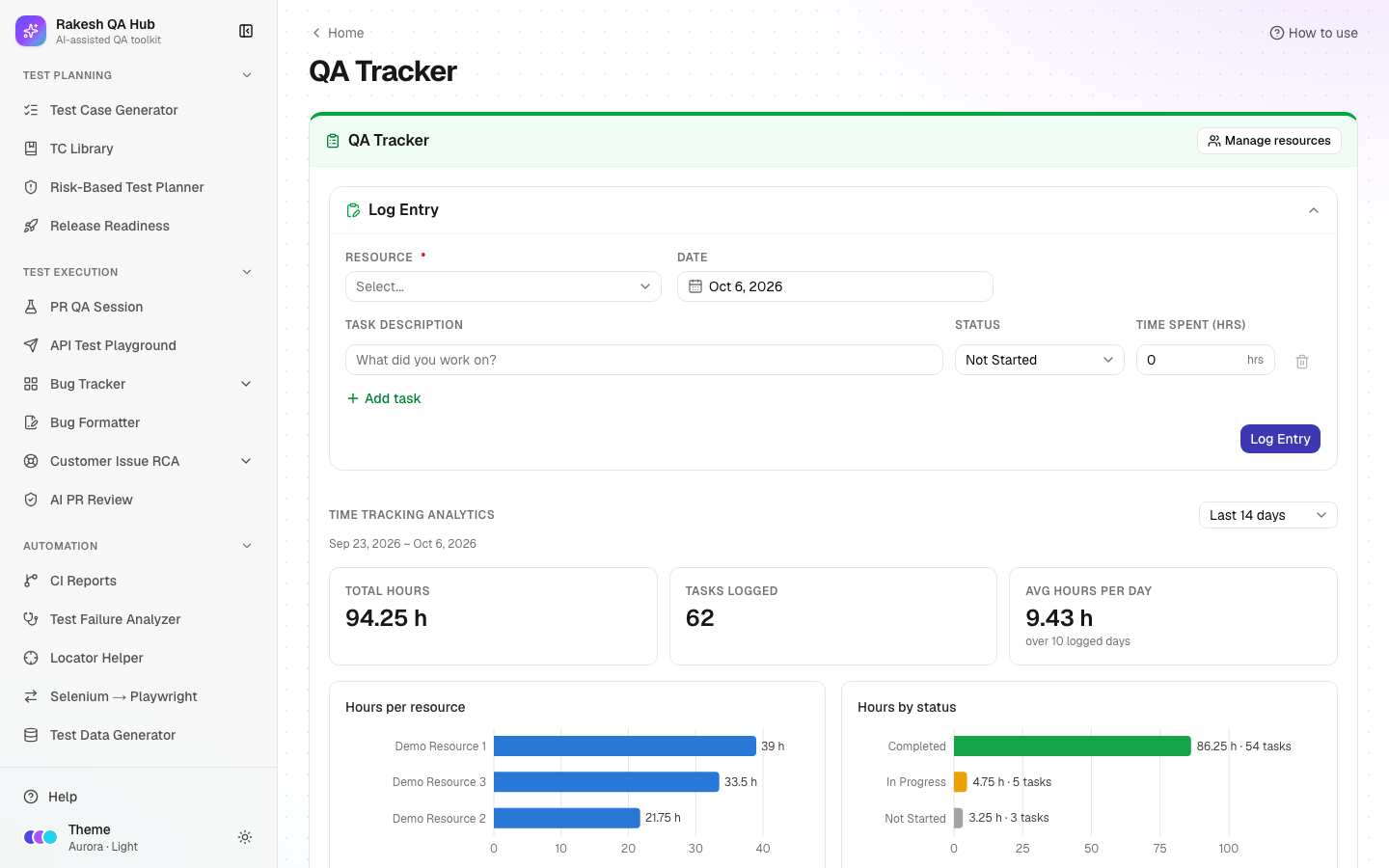
The QA Tracker is a simple daily log of QA work. Each team member (called a resource here) records what they worked on, its status and the hours spent. The page turns those logs into charts for the last 7, 14 or 30 days and a searchable history grouped by date.
The problem it solves#
Before: at the end of a sprint, nobody can say where QA time went. Time spent on regression, exploratory testing and meetings is invisible, estimates for the next sprint are guesses, and stand-up updates are lost the moment they're spoken.
After: a one-minute log per day per person builds a clear record: total hours, tasks logged, average hours per day, hours per person and by status. Leads can spot overload, and managers see how effort is spread.
Who should use it and when#
- QA engineers — at the end of each day (or task), to log what they did.
- QA leads — weekly, to review workload and status across the team, and when planning capacity.
- Managers — at sprint or month end, for a summary of QA effort.
Key features#
- Manage resources — add team members (Name, optional Email), rename them, mark them inactive, or delete them.
- Log Entry form:
- Resource and Date (no future dates).
- One or more task rows, each with Task description, Status and Time spent (hrs).
- Add task adds another row.
- Status — Not Started, In Progress or Completed.
- Time Tracking Analytics for the last 7, 14 or 30 days:
- Total hours, Tasks logged and Avg hours per day.
- Charts: Hours per resource, Hours by status and Daily hours.
- Show the data as a table — the same numbers as a table.
- Task history per person: grouped by date (DD/MM/YYYY), searchable, with inline status and hours edits and Load older dates.
How to use it#
- Open QA Tracker from the Reports & Insights section of the sidebar.
- First time only: click Manage resources, type a Name (and optionally an Email), and click Add resource for each team member.
- In Log Entry, pick the Resource and Date (today by default).
- Type the Task description, choose a Status, and enter Time spent (hrs), e.g.
1.5. - Click Add task for more rows if you worked on several things that day.
- Click Log Entry. The history switches to that person's tab and shows the new tasks.
- In Time Tracking Analytics, choose the period (7, 14 or 30 days) and read the totals and charts.
- In the history, search tasks, change a status or hours inline, or click Load older dates to go further back.
Worked example#
"Demo Resource 1" logs Monday's work:
| Task description | Status | Time spent (hrs) |
|---|---|---|
| Checkout regression — Chrome and Safari | Completed | 3 |
| Exploratory testing of the coupon field | In Progress | 2.5 |
| Bug triage meeting | Completed | 1 |
After Log Entry, the history for Demo Resource 1 shows the date with three tasks and 6.5 hours. Over 14 days, analytics show, for example, Total hours 96, Tasks logged 41, Avg hours per day 6.9. Hours per resource shows that Demo Resource 2 logged far fewer hours, which is worth checking with them. Hours by status shows how much work is still in progress.
Understanding the output#
- Total hours — all hours logged in the period, for everyone.
- Tasks logged — the number of task rows in the period.
- Avg hours per day — total hours ÷ the number of days that have logs (empty days aren't counted).
- Hours per resource — a bar per person.
- Hours by status — bars for Not Started (grey), In Progress (amber) and Completed (green), each labelled with text.
- Daily hours — a line showing hours per day across the period.
- Status pills in the history use the same colours.
- Show the data as a table — the chart numbers as an accessible table.
Tips and best practices#
- Log daily, not at the end of the week; memories fade fast.
- Keep task descriptions specific ("Checkout regression — Safari" rather than "testing") so the history is useful later.
- Use statuses honestly. A lot of "In Progress" hours can signal blocked work.
- Mark people who leave the team inactive instead of deleting them, so their history stays.
- Review the 30-day view before sprint planning to set realistic QA capacity.
Limitations and things to know#
- Hours per task must be more than 0 and at most 24, in steps of 0.25 (15 minutes).
- Dates can't be in the future.
- Inactive people are hidden from the form and tabs, but their history is kept.
- Deleting a task or a resource needs the admin passcode, and deleting a resource also deletes their logs.
- There are no logins; anyone can log for any resource. Agree as a team that people log their own work.
- The log is visible to everyone using the hub. Don't put client names or personal data in task descriptions.
Works well with#
- Bug Tracker — compare logged testing hours with the issues found per feature.
- Risk-Based Test Planner — compare planned hours per area with the hours actually logged.
- Automation ROI — QA Tracker shows manual effort; ROI shows the time automation saves.
FAQ#
Why can't I log work? You need at least one active resource. Click Add a resource (or Manage resources) first.
Can I log several tasks at once? Yes. Click Add task for each extra row before clicking Log Entry.
Can I fix a mistake? Yes. Change the status or hours directly in the history. To remove a task, use delete (passcode needed).
Why is "Avg hours per day" higher than I expected? It only counts days that have logs. Weekends and days off don't pull the average down.